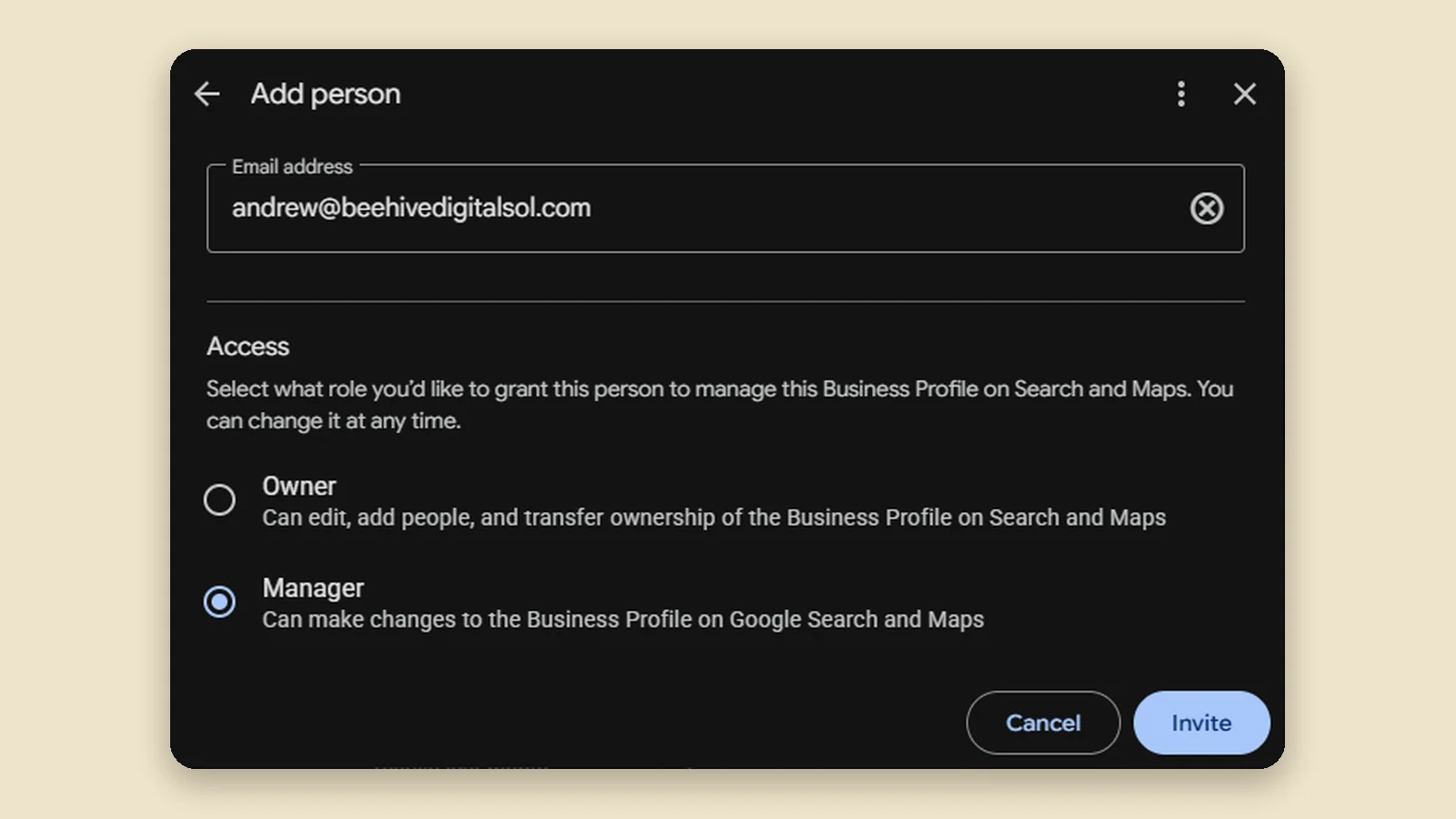
Quick answer: on a computer, search your business name on Google. Click the three dots next to Profile Strength, then Business Profile settings, People and access and Add. Type the email, choose Manager, and click Invite.
On your phone? Use the phone version of this guide instead.
Before you start
- Use a computer, signed in to the Google account that owns your Business Profile.
- Have the email address ready. If you are adding Beehive, it is andrew@beehivedigitalsol.com.
Step 1: Search your business name on Google
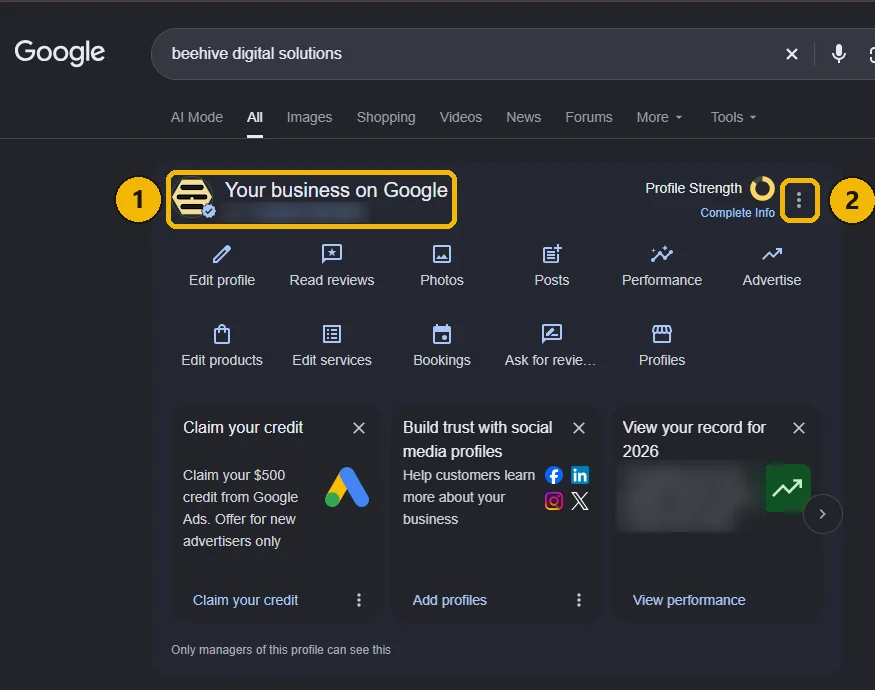
Go to google.com and search for your business name. At the top of the results you will see a box called Your business on Google. Only you can see it.
Step 2: Click the three dots
In the top right corner of that box, next to Profile Strength, click the three dots.
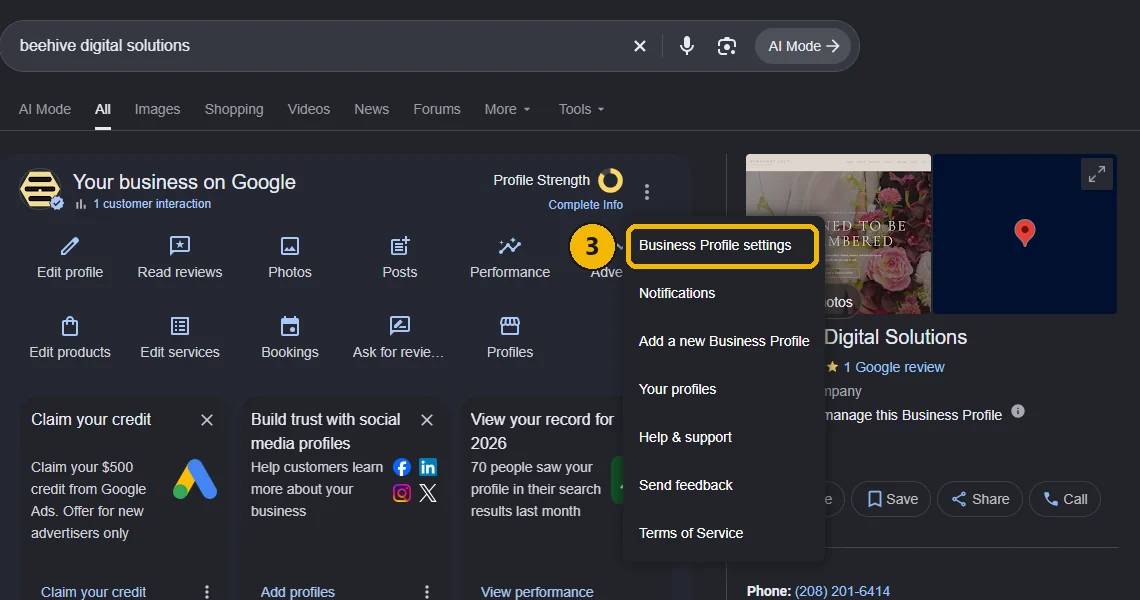
Step 3: Click Business Profile settings
It is the first item in the menu.
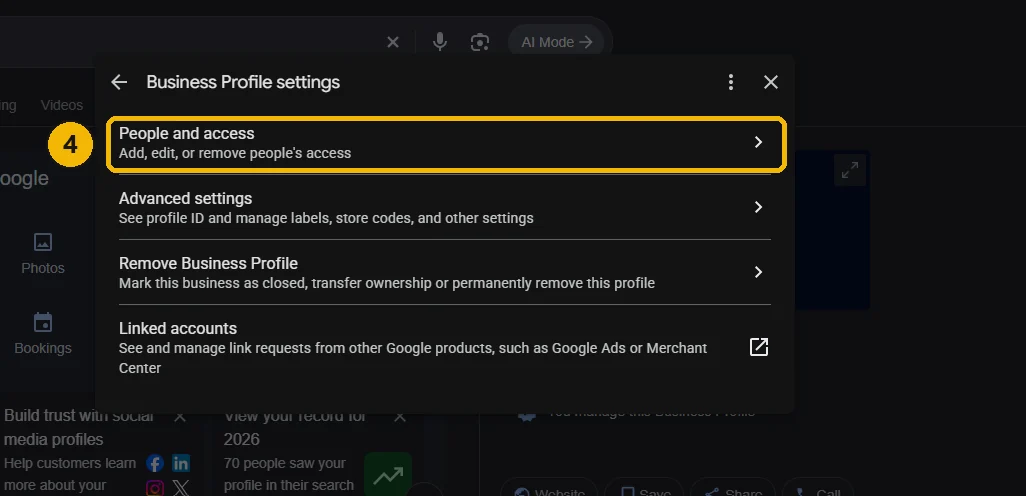
Step 4: Click People and access
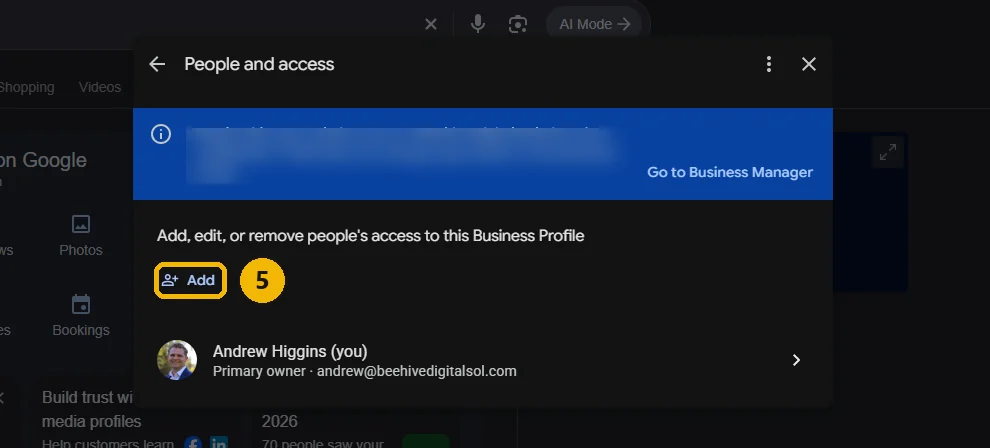
Step 5: Click Add
You will see everyone who can already manage your profile. Click Add above the list.
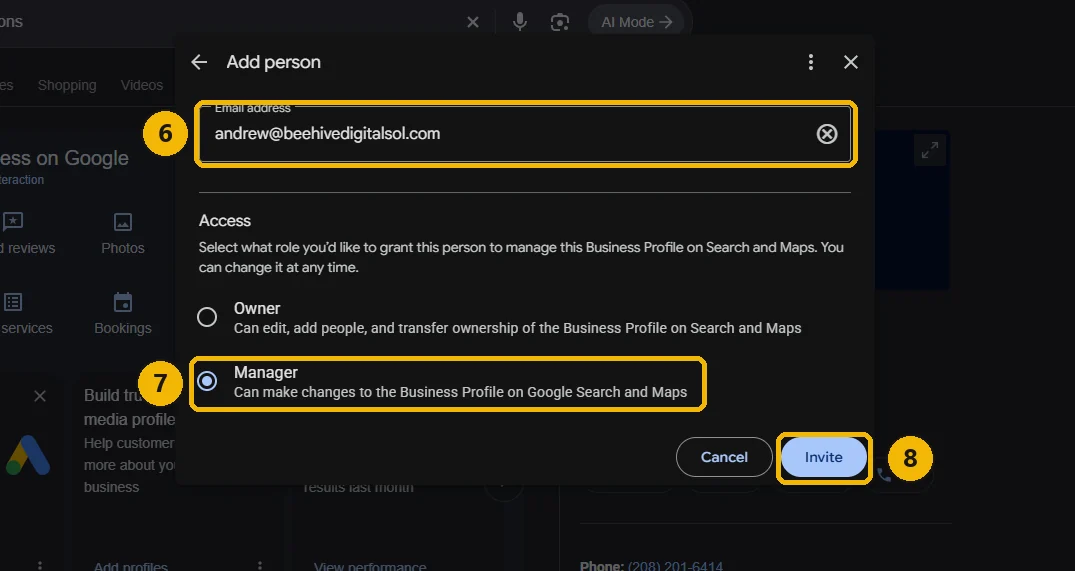
Step 6: Type the email address
Adding Beehive? Type andrew@beehivedigitalsol.com.
Step 7: Choose Manager
Under Access, pick Manager, not Owner.
Step 8: Click Invite
That is it. Google emails the invitation, and we are in as soon as we accept it, usually the same day. You will see us listed under People and access.
Manager or Owner?
Choose Manager. A manager can edit your hours, photos and services, post updates, reply to reviews and see how your profile is doing. That is everything we need.
An owner can also add and remove people, and even remove the profile. Keep ownership with your business. A good agency will never ask for it.
Questions
I do not see “Your business on Google”
You are almost certainly signed in to a different Google account. Click your picture in the top right corner of Google, switch to the account that owns the profile, then search again.
Can I remove a manager later?
Yes, any time. Go back to People and access, click the person, and choose to remove them. It takes effect straight away.
Can I do this on my phone?
Yes. Here is how to add a manager on your phone.
Stuck on a step? Call (208) 201-6414 or email hello@beehivedigitalsol.com and we will walk you through it.