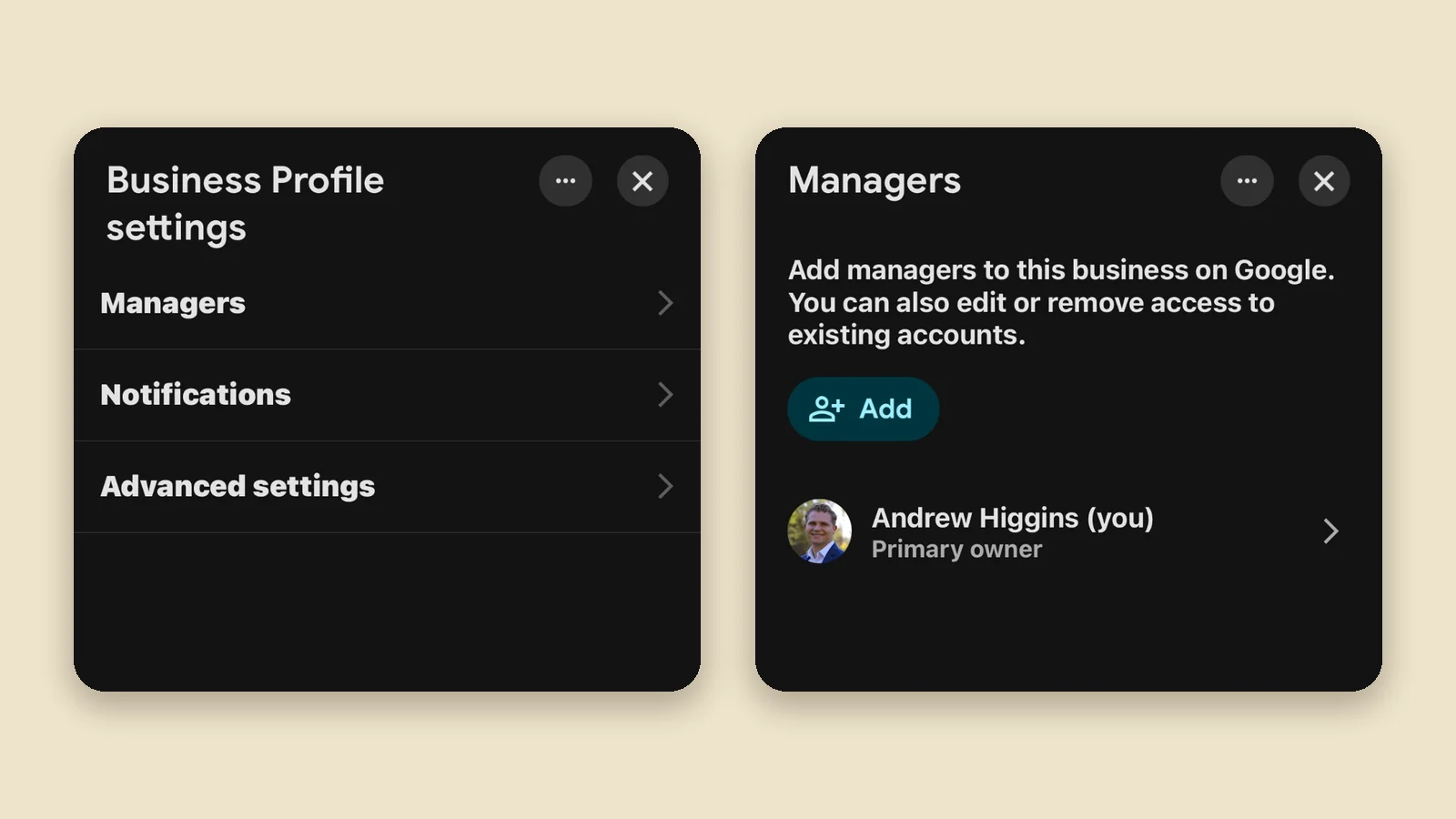
Quick answer: in the Google Maps app, tap Business, then See Business Profile. Tap More, then Business Profile settings, Managers and Add. Type the email, tap it, and tap Invite.
On a computer? Use the computer version of this guide instead.
Before you start
- Open the Google Maps app, signed in to the Google account that owns your Business Profile. The pictures below are from an iPhone; Android looks almost the same.
- Have the email address ready. If you are adding Beehive, it is andrew@beehivedigitalsol.com.
Step 1: Tap Business
It is at the bottom right of the Maps app.
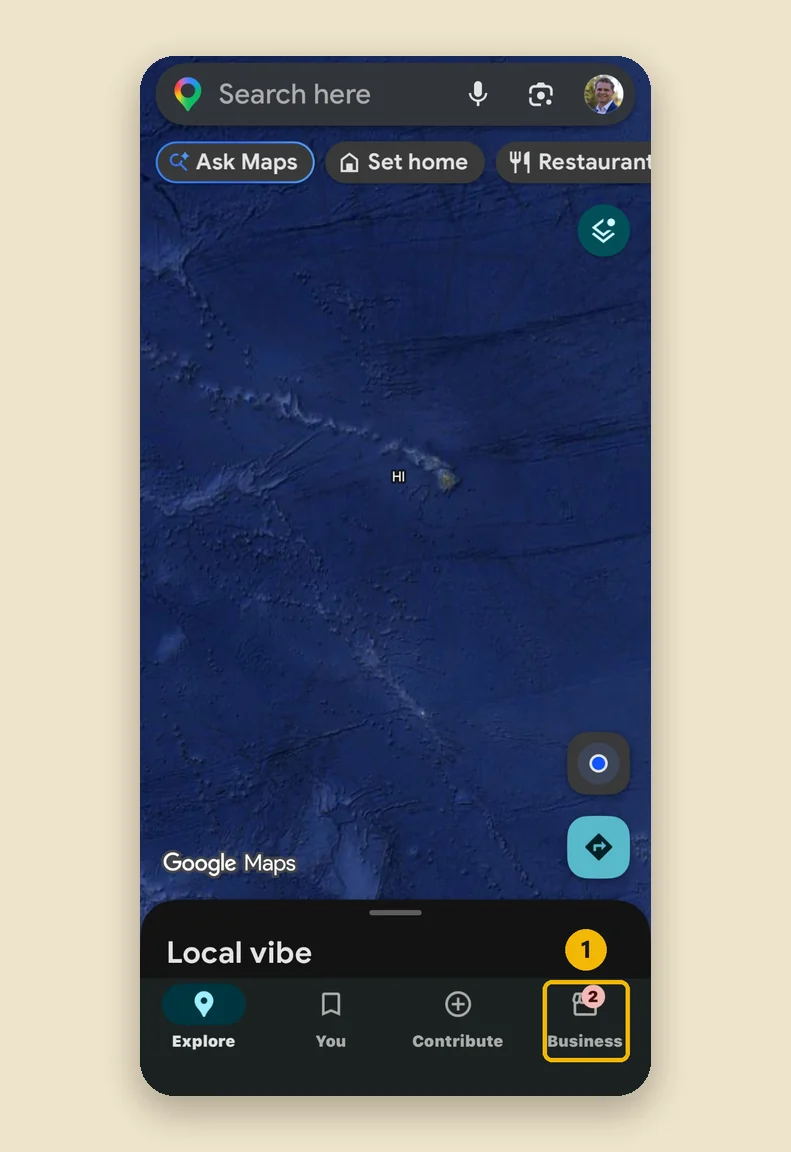
Step 2: Tap See Business Profile
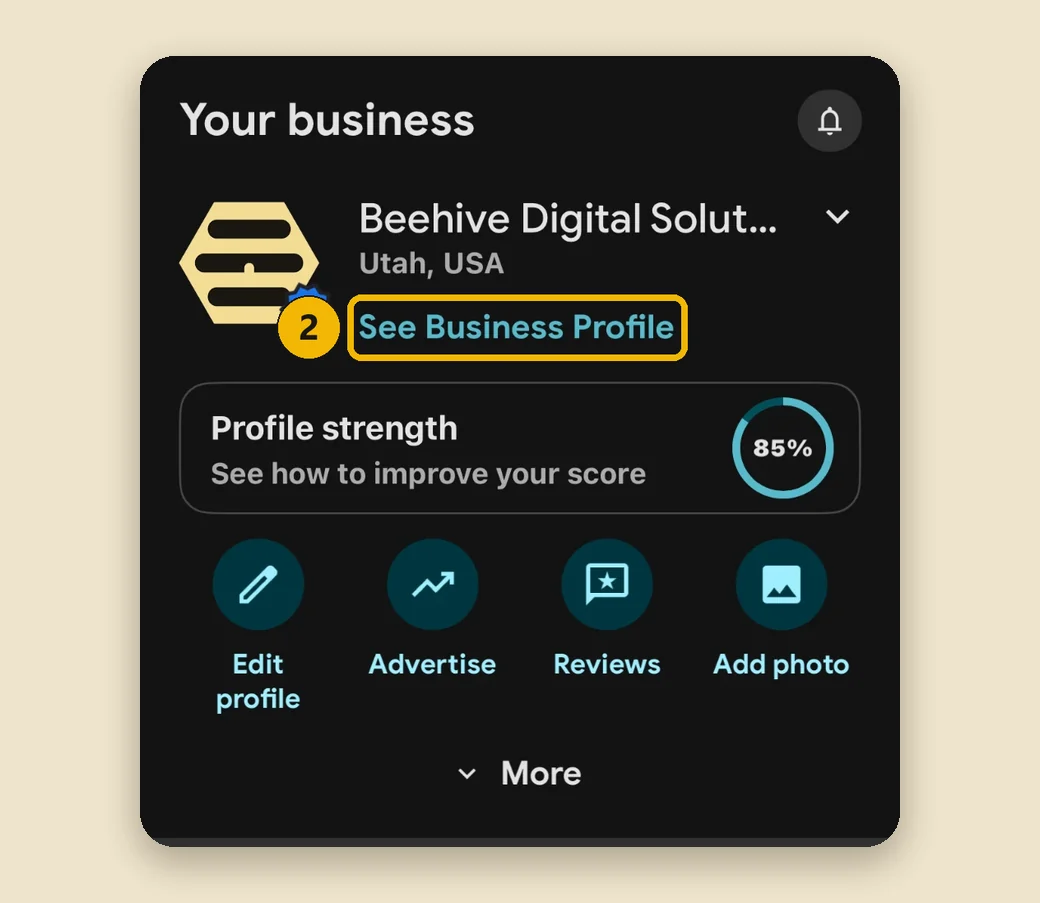
Step 3: Tap More
Under your business name is a row of buttons. Swipe that row to the left until you see More, then tap it.
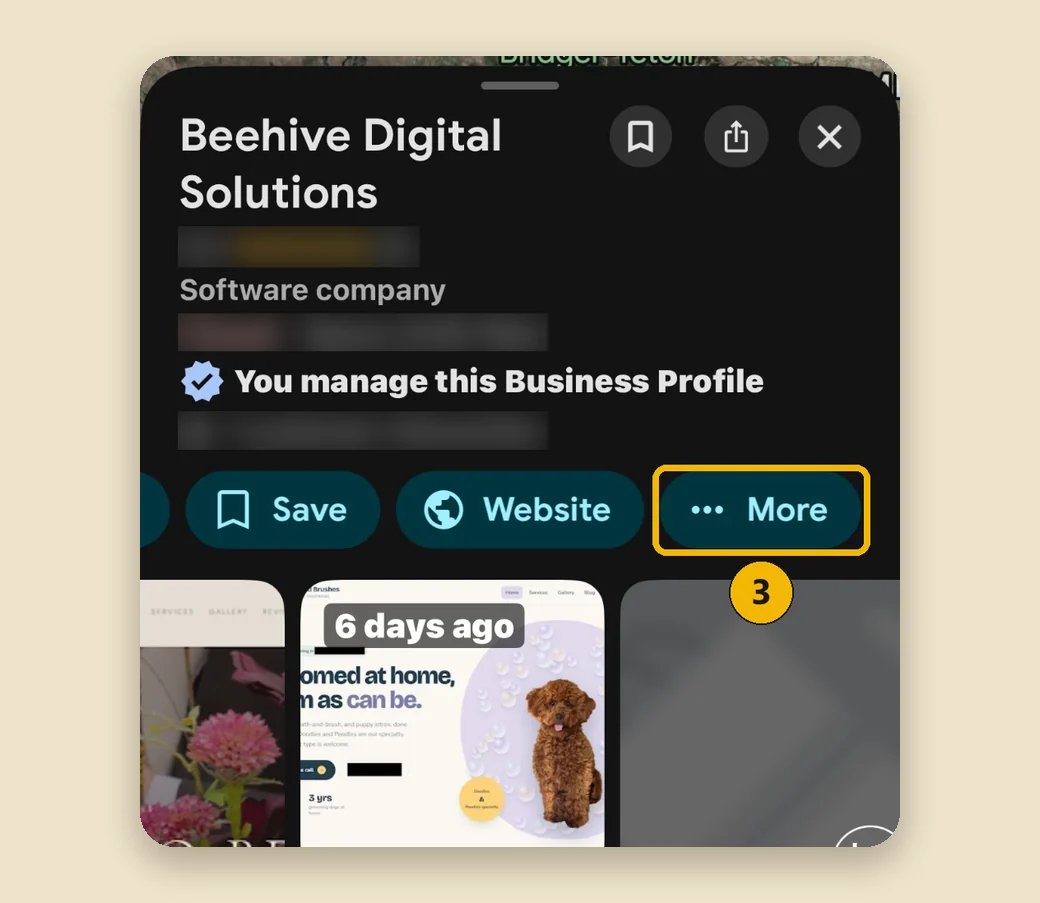
Step 4: Tap Business Profile settings
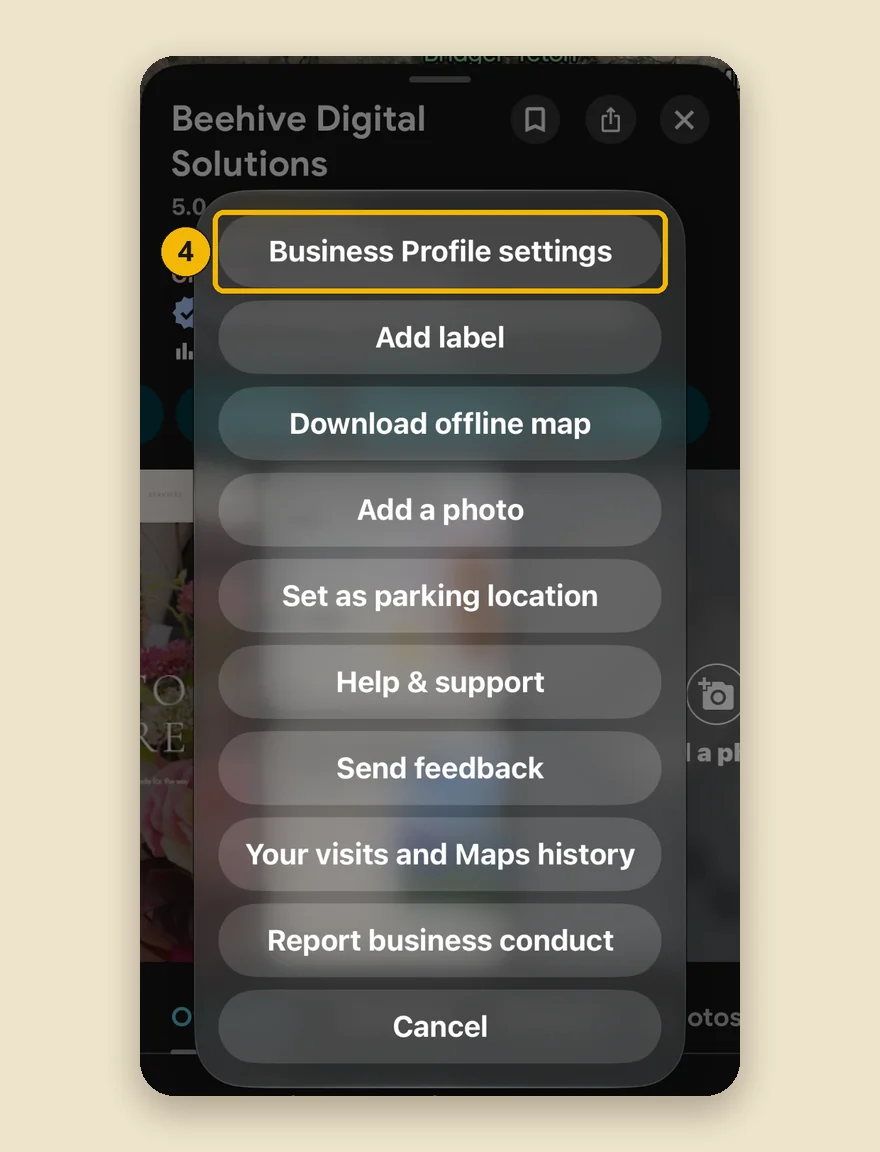
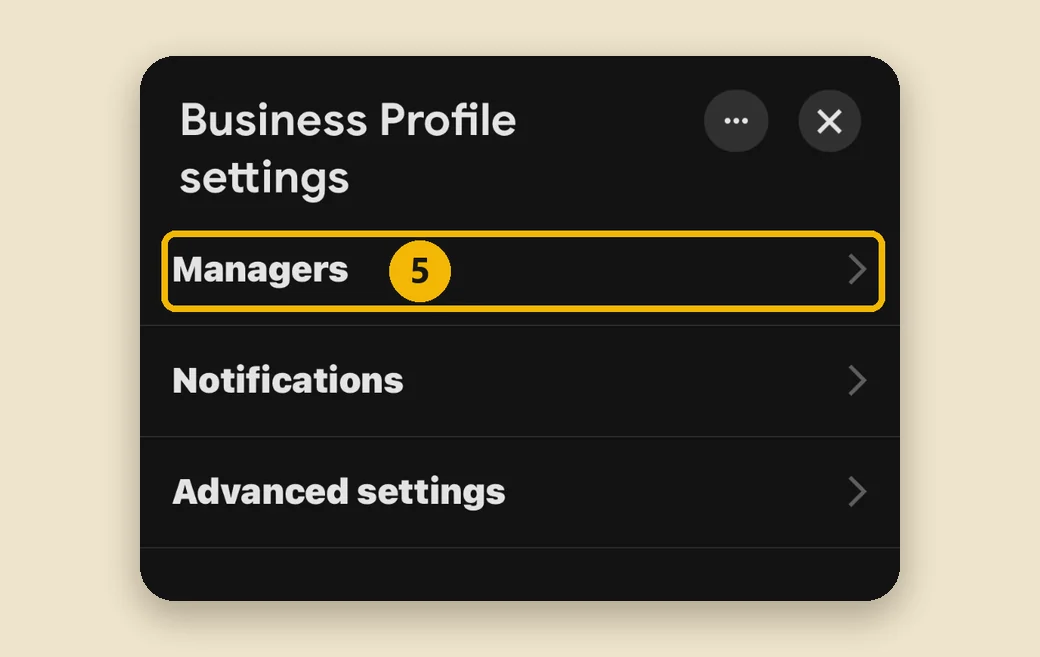
Step 5: Tap Managers
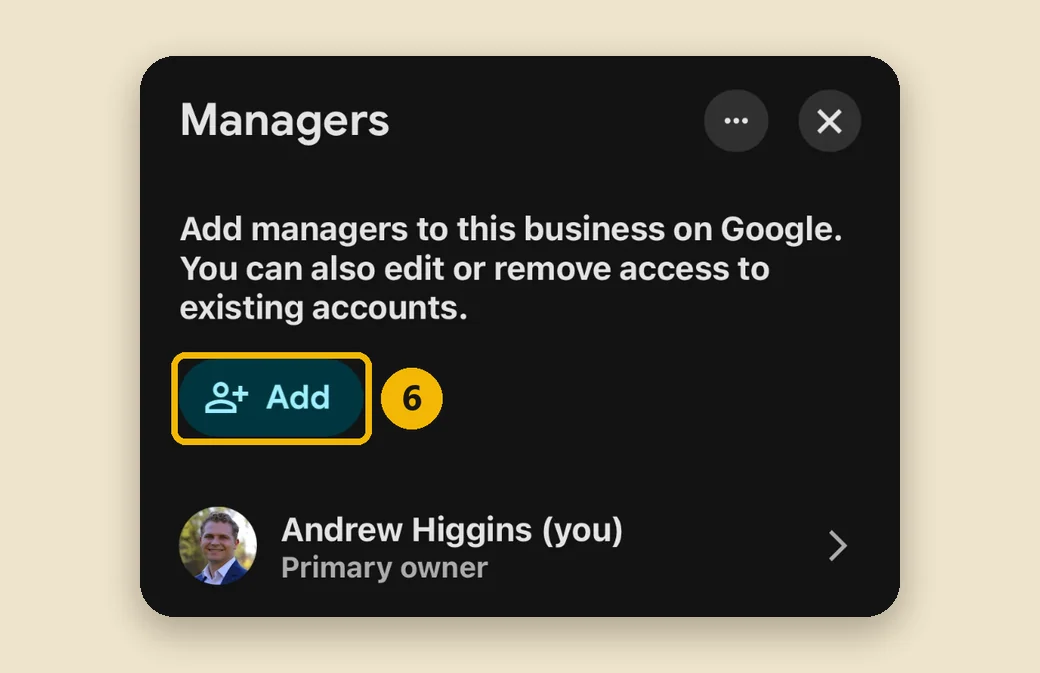
Step 6: Tap Add
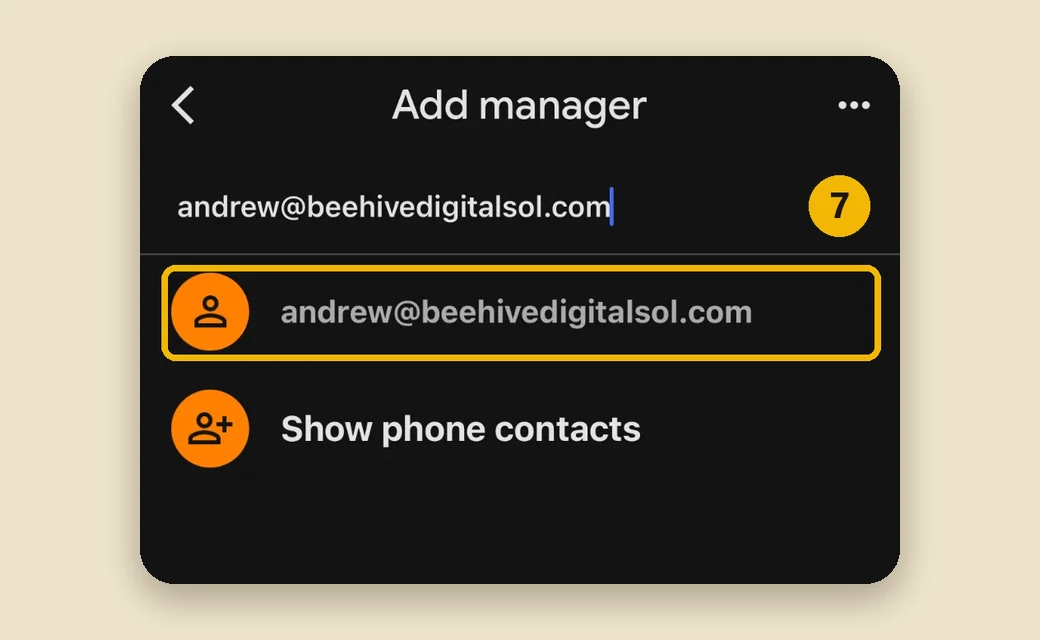
Step 7: Type the email, then tap it
Adding Beehive? Type andrew@beehivedigitalsol.com. It appears in the list underneath. Tap it.
Step 8: Tap Invite
There is no role to pick. Anyone you add from your phone is added as a Manager, which is exactly the access we need.
That is it. Google emails the invitation, and we are in as soon as we accept it, usually the same day.
Questions
I do not see the Business tab
Update the Google Maps app, and check that you are signed in to the account that owns the profile: tap your picture in the top right corner of Maps to switch accounts.
Can I make someone an owner from my phone?
No, the Maps app only adds managers. That is all we need, and ownership stays with your business. The computer guide explains the difference.
Can I remove a manager later?
Yes, any time, from the same Managers screen.
Stuck on a step? Call (208) 201-6414 or email hello@beehivedigitalsol.com and we will walk you through it.